⚡Firmware recovery — start here
Try the normal update first. Use manual recovery only for a board revision that has been confirmed.
Use firmware recovery when a verified update was interrupted or the device
remains an RPI-RP2 drive. A powered device that is merely missing from a DAW
is not proof of damaged firmware. Do not start with exposed contacts if
Settings or Windows can still see the device.
Green LEDs mean power only. First close browsers, DAWs, and MIDI utilities; check Windows Device Manager; then reconnect once with a known data cable. If the device remains absent, save screenshots and stop. Do not reflash from this symptom alone.
⚠️ The board must match the picture. USB-C alone does not identify a hardware revision. If any label, component, or contact position differs, stop. Send support a clear photo of both sides instead of probing pads.
Try the normal update
- Close every DAW and MIDI app.
- Connect one device directly with a USB data cable.
- Open the correct Settings page in desktop Chrome or Edge: TouchMe, Playtron, or Biotron.
- Select Update Firmware and follow the on-screen steps. Do not disconnect during a file copy.
- Wait for the automatic restart. Success means the drive disappears and the device returns as MIDI.
If RPI-RP2 is already visible
The device is in update mode. Use only the firmware file supplied by the
Settings flow or Playtronica support for your exact device. Copy it to
RPI-RP2, wait for the copy to finish, and let the device restart.
Do not copy a TouchMe, Playtron, Orbita, or generic Pico file onto Biotron.
Biotron recovery
Do not bridge Biotron contacts from a general internet image. Sold board revisions may differ, and the manual position is not verified for every unit.
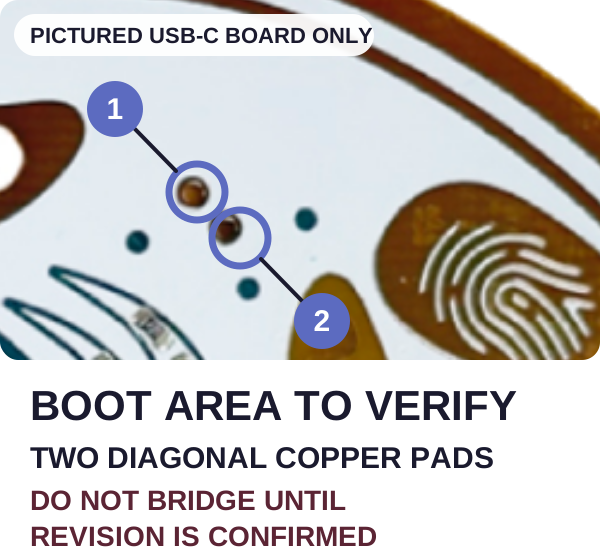
- Photograph both sides of the full board. Keep USB disconnected.
- Email the photos to support@playtronica.com. Include the order number and operating system.
- Wait for revision confirmation. Support will identify the exact contacts and recovery file.
The close-up makes the area readable. It is an identification aid, not a universal procedure.
TouchMe or Playtron manual recovery
Continue only when the board matches the labelled image for TouchMe or Playtron. These steps do not apply to an unconfirmed Biotron.
- Disconnect USB. Prepare a paper clip, tweezers, or a short wire.
- Hold the two labelled BOOT contacts together.
- Connect USB while holding the contacts.
- Release when
RPI-RP2appears. If it does not appear, disconnect and stop after one retry. - Copy the verified
flash_nuke.uf2supplied for this recovery. Wait for the drive to reappear. - Return to Settings and install the device firmware. Wait until it returns as MIDI.
⚠️
flash_nuke.uf2erases the flash. Do not use a file from an unknown mirror and do not interrupt either copy.
On a Mac: "error code 100093" when dragging the file
If you drag a .uf2 file onto the RPI-RP2 drive and macOS says "The operation can't be completed because an unexpected error occurred (error code 100093)" — the file did not copy and the device does not reboot.
This is not your device and not our firmware. Since macOS Ventura (13.0), Finder tries to write extended attributes onto firmware drives like this one, and the drive rejects them. It affects every board that updates this way — Raspberry Pi Pico, Adafruit, micro:bit and ours alike.
The fix — copy from Terminal instead of Finder:
- Put the device into update mode so the
RPI-RP2drive appears. - Open Terminal (Applications → Utilities → Terminal).
- Type
cp -X(with a space after-X), then drag the.uf2file into the Terminal window — the path fills in by itself. - Add
/Volumes/RPI-RP2at the end and press Enter:
cp -X ~/Downloads/flash_nuke.uf2 /Volumes/RPI-RP2
The -X flag tells macOS to skip the extended attributes, which is exactly what Finder gets wrong. The drive disappears immediately and the device reboots — that is success, not an error.
If Terminal says "No such file or directory", the drive is not mounted: put the device back into update mode and check that
RPI-RP2is visible in Finder first.
Still stuck
Email support@playtronica.com with the subject
Firmware recovery #[order number]. Include:
- the device name;
- clear photos of both sides;
- Windows or macOS version;
- whether
RPI-RP2appears; - the exact step that failed.
We aim for 24 hours, but a reply may take up to 3 business days.