🍉Playtron — the clip-anything MIDI instrument
Clip the wires, ground yourself, touch anything that conducts. Setup, the grounding fix, the no-sound checklist, and firmware updates.
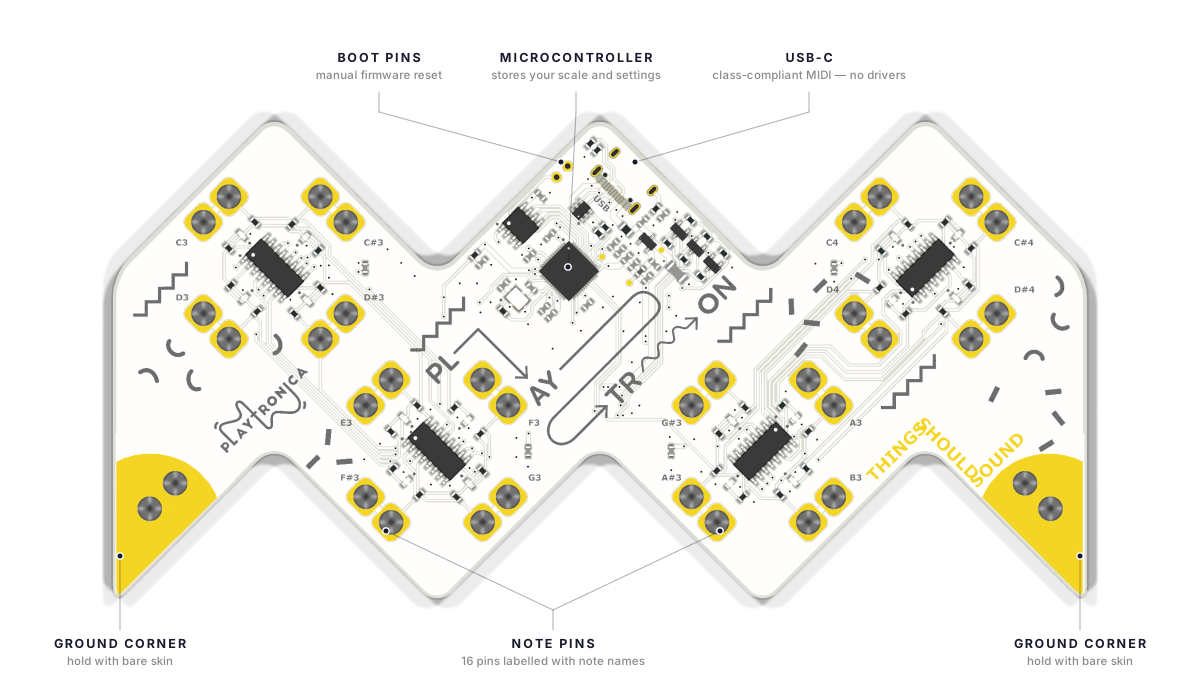
Playtron turns any conductive object into a piano key. Clip alligator wires to fruit, plants, metal, or water. Hold the pointed corner of the device — that sharp corner is the ground — and touch the object, and the note plays. Up to 16 objects can be mapped to 16 notes. If the object conducts electricity, Playtron can play it.
⚠️ Handle only the parts shown in this guide. Touch the 16 alligator-clip pins, the pointed ground corner, and the USB-C connector. Even when nothing is plugged in, do not touch solder joints, exposed chips, or the back of the PCB. Playtron is durable, but those areas can be damaged permanently. Treat the rest of the board the way you would treat the back of a phone screen.
🛠️ Want to go deeper? When you are past the basics, see the Playtron deep dive for custom scales, per-pin mapping, and performance routing.
🛒 Don't have one yet? Buy Playtron on shop.playtronica.com — White or Black (Limited). The box ships with the USB cable and 8 alligator-clip cables.
Grounding — the one thing to understand first
Without grounding, Playtron does not play. This is the single most common reason new users think Playtron is broken. Grounding is not optional; it is how Playtron works.
Playtron is an electrical circuit with two ends. The 16 alligator-clip pins are one end, and the two golden ground pins on the pointed corner are the other. Your body closes the loop between them: one hand on ground, the other hand on the object. No closed loop, no note.
The ground has to reach your skin. Ground clipped to a radiator, a pipe, or your laptop leaves you outside the circuit, and nothing plays.
You have five ways to ground yourself. Use whichever is easiest in your setup:
- Hold the pointed corner with bare skin. The simplest method. Touch a note object with your other hand.
- Hold a ground cable. Clip a wire to the pointed corner and keep the metal end in your hand. Use this when the device sits out of reach.
- Wear the ground. Clip the wire to a metal ring, a metal wristband, or the edge of your clothing where it touches skin. The cable stays hidden — the pattern for live performance.
- Hold a second object. Clip the wire to another conductive object — an orange, a spoon, a glass of water — and hold that object while you play the rest.
- Another person. A friend holds the ground and touches your skin. At workshops the whole group holds hands while one person plays.
What does not work as ground: your laptop's metal body (it is already the same ground through the USB cable), a radiator or a pipe (the circuit goes to the wall instead of to you), dry rubber, dry wood, painted metal, anodised aluminium, plastic. Skin needs to be bare; no clothing between you and the metal.
For installation patterns and the full explanation, see Grounding — how and why.
Quick start
You have read about grounding. Now plug in.
- Clip an alligator wire to a note pin on Playtron. Clip the other end to a conductive object — fruit, plants, metal, or water. Repeat for each note, up to 16 objects.
- Plug Playtron into your computer with the USB cable from the box. Then open synth.playtronica.com in Chrome. Plug in the device first, then open the browser.
- Ground yourself. Hold the pointed corner of the device with one hand, or use one of the five methods above.
- Touch a note object with your other hand. A note plays. Playtron's LED stays dark when you plug it in — that is normal and not a fault. It blinks each time you complete the circuit and a note plays, which is how you know the circuit is working.
If Playtron is not playing — 5-step checklist
Go through every step before you conclude the device is faulty. This resolves 98% of cases.
- Confirm you are grounded. See the grounding section above. This is the cause 70% of the time.
- Use Chrome. Safari and Firefox do not support Web MIDI.
- Plug in Playtron first, then open the browser. The browser scans for MIDI devices on page load. If the browser is already open, the device will not be detected.
- Check the MIDI dropdown in the synth. Most synths at synth.playtronica.com have a MIDI dropdown in the top right. Confirm Playtron is listed and selected.
- Wet your hands slightly. Wash your hands and dry them only partially, or apply hand cream. Playtron measures skin conductivity. Dry skin produces a weak signal.
Update the firmware
Only USB-C Playtron devices (2026 and later) can update firmware via the web tool. Older Micro-USB devices do not support this process.
- Open settings.playtronica.com/#/playtron in Chrome.
- Click "Update Firmware". If a drive called
RPI-RP2appears on your computer, skip to step 4. - Follow the on-screen instructions to put Playtron into update mode (short the BOOT pins, plug in USB-C, release the pins after the drive appears).
- Upload the latest firmware. The device reboots automatically.
For a full reset / Nuke recovery, see Firmware reset (Nuke).
Test the MIDI signal with a monitor
A MIDI monitor shows whether Playtron is sending any signal. Use it when you cannot tell whether the device or the synth is the problem.
Compatible monitors:
- MorningStar MIDI Monitor — online, runs in Chrome on any operating system.
- MIDI Monitor by Snoize — macOS only.
- Pocket MIDI — Mac, Windows, or iOS.
Steps:
- Plug in Playtron first, then open MorningStar in Chrome.
- Touch a note object while holding the ground. You should see message type Note On and Note Off, MIDI channel 1, and velocity 127. If messages appear, Playtron is working. The problem is in your synth or browser.
- If Playtron does not appear in the device list, close the browser, wait 5 seconds, reopen the browser, and reload MorningStar. Click the "Devices" button in the top right.
- If the device is listed but no messages appear, open MorningStar Settings and confirm "Note On" messages are enabled. MorningStar shows all 16 notes at once even if only one is active.
Reset Playtron (factory wipe)
Use the reset only if the firmware update will not start, or after a hardware fault.
- Short the BOOT pins with tweezers or a paper clip.
- Plug in USB-C with the BOOT pins still shorted.
- Wait for the
RPI-RP2drive to appear on your computer, then release the pins. The window is brief. If the drive does not appear, try again. - Drag
flash_nuke.uf2onto theRPI-RP2drive. Wait for the device to reboot. - Open settings.playtronica.com/#/playtron and upload the latest firmware.
Works great with Playtron
Playtron ships with a USB cable and eight alligator clips. To map all 16 notes and play more surfaces, add these.
- 10 extra alligator clips — Playtron maps up to 16 objects, but the box includes 8 clips. This set covers the rest. €9.
- Patches for skin and plants — stick-on electrodes for playing skin, leaves, and awkward surfaces without clipping. From €16.
- Copper tape — turn any flat surface into a key. Stick it down, clip to it, play it. €9.
- Playtron + TouchMe bundle — pair Playtron with TouchMe for clip-play and touch-play together. €163.
Related pages
- Compare all Playtronica devices — side-by-side spec matrix, what is in each box, software compatibility, prices.
- Accessories and add-ons — extra alligator clips, copper tape, patches, cables, bundles.
Ask the community
🤝 Other Playtronica users have probably hit this before. The Playtronica Friends Facebook group has 4,400 members and is the fastest source of creative and technical help. Search the group's history first (use the magnifying glass at the top — try
playtron mobile no sound,all leds lit,touchme biotron no sound,koala sampler midi, or whatever fits your problem). If your question is not already answered, post a new one with a[Device]prefix in the title. See the community page for what to ask there and what to email instead.
Still stuck
Email support@playtronica.com with the subject Playtron issue #[order number]. Attach two short videos:
- Video 1 — the full setup: device, cables, the objects you are touching, and your computer screen with the synth open.
- Video 2 — a MIDI monitor (MorningStar) open while you interact. We need to see whether the device is sending MIDI messages.
If the device is faulty, we will send a replacement or issue a refund. We aim for 24 hours, but a reply may take up to 3 business days.